Packbly Admin Dashboard: A Complete Step-by-Step Guide to Managing Your Logistics Operations
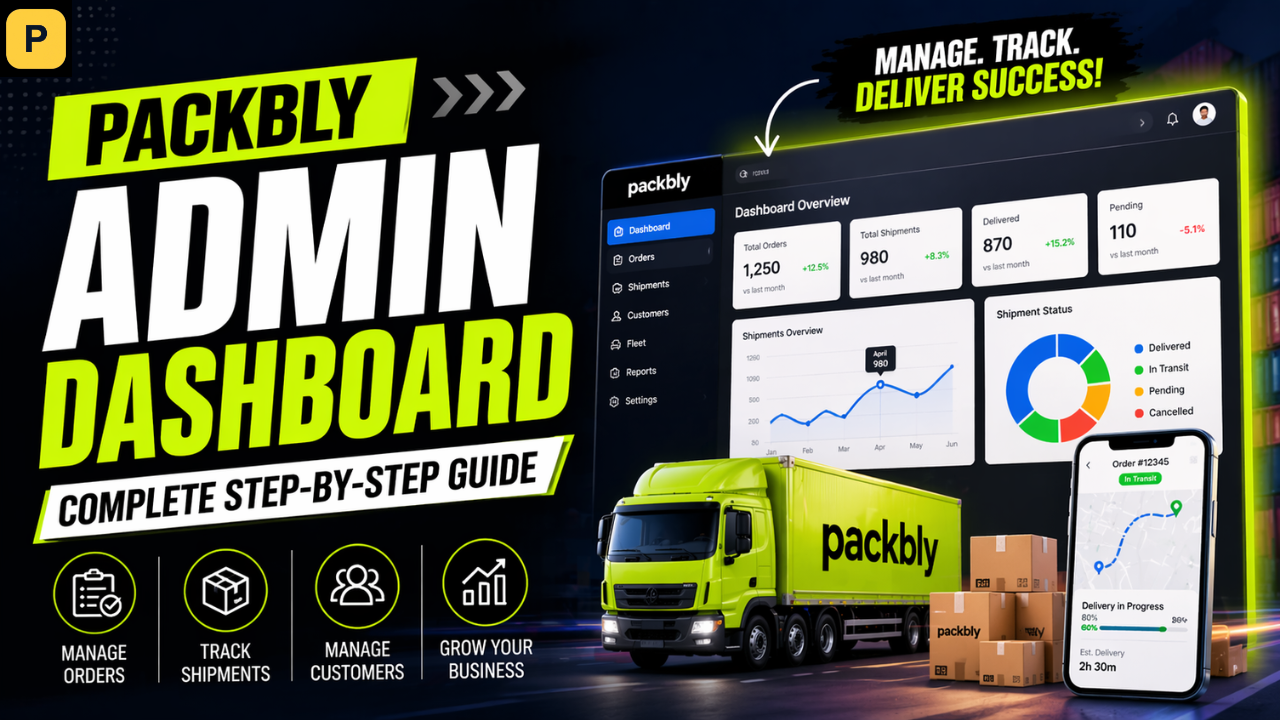
Packbly Admin Dashboard: A Complete Step-by-Step Guide to Managing Your Logistics Operations
Are you spending too much time managing shipments, quotes, and customer requests manually - and still missing things? If yes, you are not alone.
Many logistics teams lose hours every week just because they don't have one place to manage everything.
That's exactly why Packbly built its Admin Dashboard. It is a simple, clean control panel where you can manage quotes, orders, customers, warehouse contracts, partners, and even your blog - all from one place.
In this guide, we will walk you through everything step by step - from logging in for the first time to using each section of the dashboard.
Whether you are new to Packbly or just need a clear reference, this guide is for you.
What Is the Packbly Admin Dashboard?
The Packbly Admin Dashboard is a web-based admin console. Think of it as the back office of your entire Packbly operations. From here, the admin team can see everything that is happening - incoming quote requests, live orders, customer details, partner activity, and more.
It is designed to be straightforward. You don't need any technical knowledge to use it. If you can use a basic website, you can use this dashboard.
How to Log In to the Packbly Admin Panel

Logging in is the first step. Here is exactly how to do it:
1. Open your web browser (Chrome, Firefox, or any browser works fine).
2. Go to this URL: packbly.com/admin
3. You will see a login page asking for your username and password.
4. Enter your username and password.
5. Click the Login button.
6. You will land directly on the Dashboard Overview page.
That's it. No complicated steps. Once you are logged in, you will see the full admin console with all sections listed on the left side of the screen.
A Complete Walkthrough of Every Section

1. Quotes - Sales Leads
When you click on Quotes in the left menu, you land on the Sales Leads page. This is where every customer quote request appears after they fill out the form on the Packbly website.
You can filter leads using four tabs at the top:
• All Orders — Shows every quote request in one list.
• Order (New) — Freshly submitted requests that have not been actioned yet.
• In Progress — Quotes being worked on.
• Delivered — Completed quote requests.
Each row shows:
Date
Quote ID
Quote Code
Customer Name
Phone Number
Part/Full Load type
Service type
Status
You can edit a quote or view full details using the action icons on the right. There is also a + New Quote button if you need to manually create a quote, and an Export CSV option to download all lead data.
2. Orders - Active Orders
The Orders section, labelled Active Orders, is where confirmed shipments live. Once a quote is accepted and converted into an order, it shows up here.
Each order row shows:
Date,
Order ID
Order Code
Customer Name
, Phone Number
Part/Full Load
Route (e.g. Delhi → Mumbai)
Status.
Use the edit or view icons on the right to manage individual orders. You can also add new orders manually with the + New Order button.
3. Partner Network

This section lists all logistics partners connected to Packbly. Each Partner network has a unique Partner ID, and you can see their Order Count, Phone Number, Services offered, Approval Status, Device ID, Joining Date, and current Availability (Online or Offline).
Partners can have one of three statuses:
• Pending — Application submitted, under review.
• In Progress — Verification underway.
• Approved — Fully verified and active on the network.
You can search for any partner using the search bar at the top right. Use the edit and view icons to update partner details or check their full profile.
4. Customers - Customer Database

The Customers section is your Customer Database. It stores records of every person or business that has interacted with Packbly.
Each record includes:
Customer ID
Order Count
Orders linked
Name
Phone
Status
Device ID
Date Joined
Actions
This is useful when you need to look up a specific customer, check their order history, or update their information.
5. Warehouse Contracts
This section manages all warehouse storage agreements.
Every contract record shows:
Contract ID
Customer Name
Location
Duration
Status
Actions
There is a + New Inquiry button at the top right to add a new warehouse contract request.
If a business has signed up for long-term warehousing or hub storage with Packbly, that agreement lives here and can be tracked from start to finish.
6. Forms Management

This is one of the most powerful sections of the dashboard. Forms Management lets you create and manage all the operational documents used during a shipment. There are seven form types available:
• Quotation — The pricing document sent to a customer.
• Survey List — A pre-move checklist of items.
• Packing List — Documents what gets packed during the move.
• LR / Bilty — The lorry receipt for the shipment.
• Bill — The final invoice for the customer.
• Money Receipt — Confirmation of payment received.
• Payment Voucher — Internal record of outgoing payments.
For each form type, you can set Role Assignments - meaning you decide which team roles can access that form.
The available roles are: Admin, Manager, Sales, Operations, Accounts, SEO, and Marketing. This ensures the right people see only what is relevant to their work.
7. User Management
User Management is where you control who can log in to the admin panel and what role they have. Each user has a User ID, Username, Email, Role/Team, and Status (Enabled or Disabled).
Available roles in the system are:
• Admin, Manager, Sales, Operations, Accounts, SEO, Marketing
Use the + Add User button to create a new team member account. You can also edit an existing user, view their profile, or remove them using the action icons in each row.
8. Blog System - Blog Management (SEO & Content System)
The Blog System section is officially called Blog Management - SEO & Content System. From here, the team can publish and manage all blog posts that appear on the Packbly website.
Each published blog post appears as a card with its title, thumbnail image, description, publish date, and publish status (Published or Draft).
You can edit or delete any post using the icons on each card. To add a new blog post, click the + New Post button at the top right.
9. Reports & Ledger - Reports & Analytics

The Reports section is titled Reports & Analytics inside the dashboard. This is where you go for financial and operational data. It has four tabs:
• Sales Quote — Report data related to all quote activity.
• Sales Order — Data on confirmed orders.
• Operations — Operational activity breakdown.
• Ledger — A full transaction log with columns for: Date, Ticket ID, Sales Quote, Packing Quote, Partner Fee, GST/Tax, Insurance, Type, TRX No, Gateway Fee, and Refund.
• Accounts — Account-level financial summary.
At the top of this page, you can set a Start Date and End Date to filter reports for any time period you need.
This makes it easy to pull data for weekly reviews, monthly accounts, or any custom date range.
Start Managing Smarter with Packbly
Managing a logistics operation is not easy. There are quotes to handle, orders to track, partners to manage, and customers to serve - all at the same time. The Packbly Admin Dashboard brings all of this under one roof so your team can work faster and stay on top of everything without the stress.
You don't need hours of training. You don't need to be tech-savvy. Just log in, explore each section, and you will see how much easier your daily operations can become.
Ready to take control of your logistics?
Log in to your Packbly Admin Dashboard today at packbly.com/admin and see the difference for yourself.
For any queries, reach out to the Packbly team at info@professionalscs.in or call +91-9220574317.
FAQs
1. Can multiple team members use the admin panel at the same time?
Yes. The User Management section allows you to create and manage multiple user accounts. Each team member can have their own login credentials.
2. How do I export data from the dashboard?
On the Dashboard Overview page, there is an 'Export CSV' button in the top right corner. Click it to download your dashboard data as a spreadsheet file.
3. Is the Packbly admin panel mobile-friendly?
The admin panel is a web-based console best used on a desktop or laptop for the full experience. While it can be accessed from a mobile browser, a larger screen makes it easier to navigate all sections comfortably.
4. What does the Service Distribution chart show on the dashboard?
The Service Distribution chart is a donut-style graph that shows what percentage of your activity is coming from relocation services versus warehouse services. It gives you a quick visual split at a glance.